SVG or PNG?
Choose a file that fits your next creative step.
Choose between a vector repeat tile and a raster image, then check the actual dimensions. Both downloads represent the repeating unit rather than a screenshot of the full live preview.
A result you can build toward
These are actual outputs of the studio’s drawing and repeat functions. They are reference compositions, not screenshots of physical products. Your hand-drawn marks will vary.
Download the reference tile ↓The download is the first example’s repeating unit, not the full preview. It opens in SVG-compatible applications; the studio does not import files.
01 / Set up your drawing
Start with scale 100%, offset 0%, and any drawing. The SVG uses a 400 × 400 viewBox. Its displayed width and height follow Scale. For PNG, the resolution menu supplies a base width of 1024, 2048, or 4096 pixels before the scale factor is applied.
02 / Make the example
At 100% scale and no offset, a 2048 selection exports 2048 × 2048 pixels. With row offset enabled, it exports 2048 × 4096 pixels because the repeating unit contains two rows. At 50% scale those become 1024 × 1024 and 1024 × 2048 respectively. Check the status message after download for the actual PNG dimensions.
03 / Compare and refine
Use SVG when you need clean scaling and your receiving application supports the shapes and transparency correctly. Use PNG when you need a predictable image file for a wallpaper, layout, or image editor. PNG dimensions determine how much raster detail is available. Pattern rotation changes the artwork inside the unit; it does not swap the exported width and height.
If the result feels off
If an offset repeat looks stretched, restore its 1:2 proportions and keep the tiles touching without extra gaps. If SVG looks different in a particular application, compare against a PNG from the same state before changing the drawing. A larger PNG adds pixels, but does not turn a small number of drawn details into a more elaborate composition.
Check the finished file
Keep SVG as an editable vector reference and PNG as a convenient image copy. Export before clearing browser data, switching to a fresh design, or changing devices. The studio does not import these files back into the editor, and a download is not a cloud backup of the editable local canvas. See the print guide for converting pixels into a planned physical size.
Visual inspiration
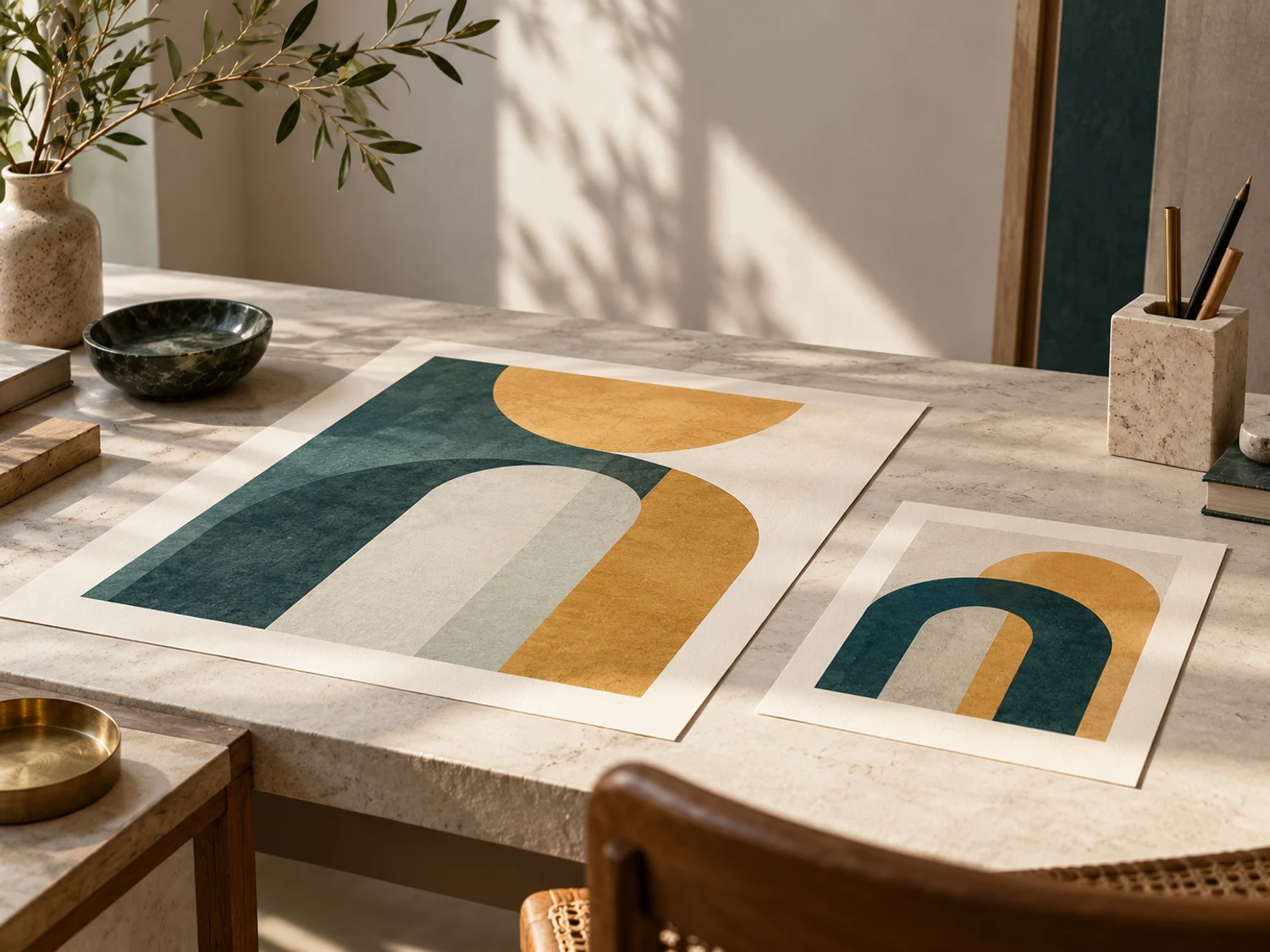
This AI-generated editorial image is a separate styling idea. Follow the studio-rendered examples above for achievable tool output. Physical materials and printing need your own tests.